
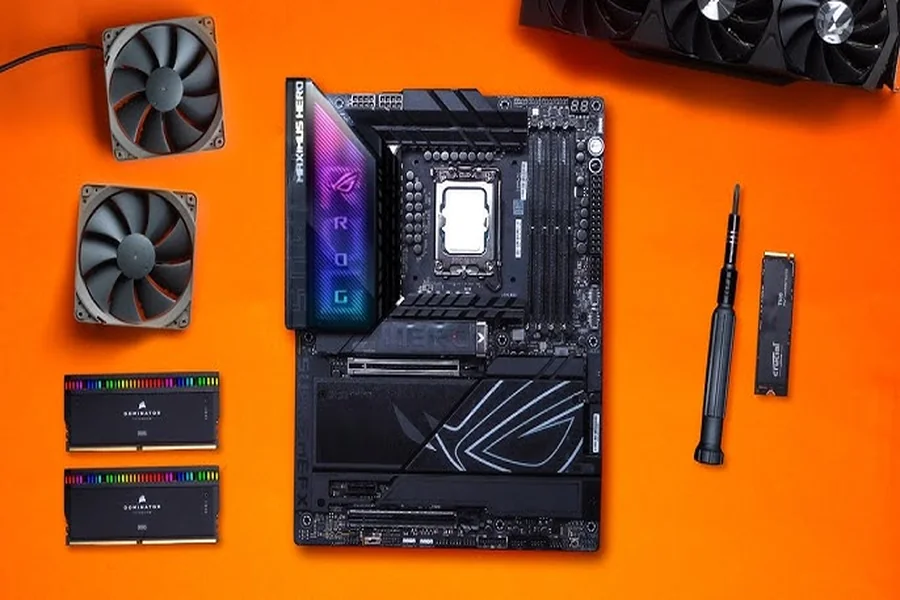
Assembling a gaming PC is something that a gamer can do to fulfill the most. You receive just the performance you require and at a cost lower than a similar prebuilt and you also get to understand how all your system functions. Learning to assemble a personal computer used in the game business is an ability that can save you money and continue paying off each time you have to upgrade or have to troubleshoot.
The reasons why building your own PC is rational.
Ready-to-use gaming PCs have been enhanced and they also carry a premium price tag. Manufacturers sell their assembly warranties and usually sell cheaper cases and power supplies to achieve price goals. Giving your own construction you select each part according to its quality and worth.
You also gain full control over aesthetics. You also choose your lighting cable management (custom), case, and more. What you end up with is a machine that mirrors your own preferences as opposed to what a manufacturer has decided to make as a mass-market.
You can easily troubleshoot and upgrade when you have created the system yourself. You are aware of all the locations of each cable, and what each component does and how they all interconnect. It is much easier to make changes in the future, which is made easier by that knowledge.
Knowledge of the Core Components.
You have to know what all the parts do before you purchase it.
The computer processor or CPU does the key calculations. The performance of a game depends greatly on the CPU and also on the GPU but the major part of the graphics performance is carried out by the graphics card (GPU). The two primary manufacturers of CPU are Intel and AMD and both have good gaming options.
The graphics card or GPU is what makes images on the screen to appear. This is the most important one in terms of gaming performance. The current generation of NVIDIA is the RTX 4000 series and that of AMD is the RX 7000 series.
All this is connected to the motherboard. It should be able to fit with your selected CPU, the AMD and Intel have different socket types. Select a board that has features that you require such as enough RAM slots M.2 slots to add SSDs and USB ports.
Data that is actively used are stored in RAM so as to be accessed in a short period of time. The minimum gaming memory is 16GB and 32GB is recommended to be used as future-proofing.
There are two types of storage. NVMe SSD is necessary to your operating system and core games – it loads much faster than HDD. A secondary HDD will come in handy in storing huge game libraries at a low cost.
All of it is powered by the power supply unit or PSU. Spare yourself not in this. A good PSU with a good brand with enough wattage will safeguard your parts against power variation. The small premium is worth it to buy an 80 Plus Gold or Platinum rated unit.
All is in the case. The key factors are airflow compatibility with your parts and size, ATX mATX or ITX. Select depending on amount of space and desire of expansion space.
Cooling maintains the temperatures. The cooler of the CPU is either liquid or air. Most of the builds can be supported by a good air cooler such as the Noctua NH-D15. All-in-one liquid coolers are more expensive and complex, yet provide a better performance.
Planning Your Build
The first thing to do is to establish a budget and choose the resolution and frame rate to which you would like to shoot. The 1080p 60fps can be done with a relatively low budget. 1440p 144fps is more expensive to invest in. The most advanced GPUs are required in 4K gaming.
Plan your build with tools such as PCPartPicker. It automatically verifies the compatibility of components, and combines prices across retailers to allow you to get the best prices. Planning is cost-effective and eliminates costly compatibility errors.
The Build Process step-by-step.
Don’t be in a hurry when your parts come. The majority of first time builders have a time of three to five hours and that is okay. Rushing causes mistakes.
Begin with the installation of the CPU in the motherboard. Touch it with care not touching the pins. The installation is very simple – follow the arrows and lower it down. Install the RAM then into the slots.
Install the CPU cooler in the next step according to the instructions to your model. Use thermal paste (when it is not already applied) a tiny pea-sized piece in the middle of the CPU will do.
Install any M.2 SSDs into the motherboard prior to its installation in the case. This can be done a lot easier on a flat surface.
Install the motherboard into the case and screw it into the standoffs. Install power supply then into power bay.
Install the GPU in the PCIe slot and fasten it using screws. Install all the power cables to the GPU, CPU and motherboard of the PSU. Install cables in the cable management channels in the case to allow free passage of air.
Installation of your storage drives and connection of SATA cables in case of using a HDD or additional SSD. Connect all the connectors in the front panel, power button reset button, USB headers and audio connectors, according to the motherboard manual, which has a clear indication of where each connector fits.
Boot and Installation of OS.
Do a test boot before closing the case. Attach your monitor and start up the system. Once the fans have started rotating and you notice that there is an output on the screen, then you are in the right track. Boot into the BIOS, and ensure that everything is recognized and configure the RAM to its maximum speed through the XMP or EXPO profile.
Install Windows or any other OS using a USB. After installing update all drivers – NVIDIA or AMD GPU drivers or Windows updates and motherboard chipset drivers.
Test the stability of your CPU with a stress test such as Prime95, and the stability of your GPU with a stress test like FurMark to ensure that both are at normal temperatures when under load.
Final Thought
Knowing how to assemble a custom gaming PC will always come in handy when it comes time to play. The higher the value and the true difficulty of explaining to someone how good it is when you have played on something that you have made is really difficult until you do the playing. Take time with the plan research all the components and never hurry in the assembling. Your initial construction will not be that great but that will educate you more on computers than years of using computers.
FAQs
Q: How much does it cost to build a gaming PC? A capable gaming PC for 1080p gaming can be built for 600 to 800 dollars. A high-end 1440p or 4K capable build typically costs 1200 to 2000 dollars or more depending on the components chosen.
Q: Is building a gaming PC difficult for beginners? No. The process is more like assembling LEGO with careful attention to detail than technical engineering. Most components only fit in the correct place and the instructions for each part are detailed. Patience matters more than technical skill.
Q: How do I know which parts are compatible with each other? PCPartPicker.com automatically checks compatibility as you add parts. Also verify that the CPU socket type matches the motherboard and that the power supply has enough wattage for your components.
Q: Do I need special tools to build a PC? Mostly just a Phillips head screwdriver. An anti-static wrist strap is optional but recommended. Good lighting and a clean workspace are helpful.
Q: What should I do if my PC does not turn on after building? Check all power connections are fully seated. Confirm the RAM is in the correct slots. Verify the front panel connectors are connected correctly. Consult the motherboard’s debug LED or beep codes if present. Most first-boot issues are simple connection problems.
